WordPress powers more websites than any other platform in the world, which is exactly why automated hacking tools scan WordPress sites around the clock looking for a single weakness. Your company website does not need to be famous to be targeted. It only needs to be unprotected.
This guide is part of the WordPress Websites & Care section. It covers the nine steps I apply to every site I build, plus one extra step that protects you even if the worst happens.
In short: most hacks do not target your site by name. They exploit known vulnerabilities in outdated software or weak passwords, which means most of them can be prevented.
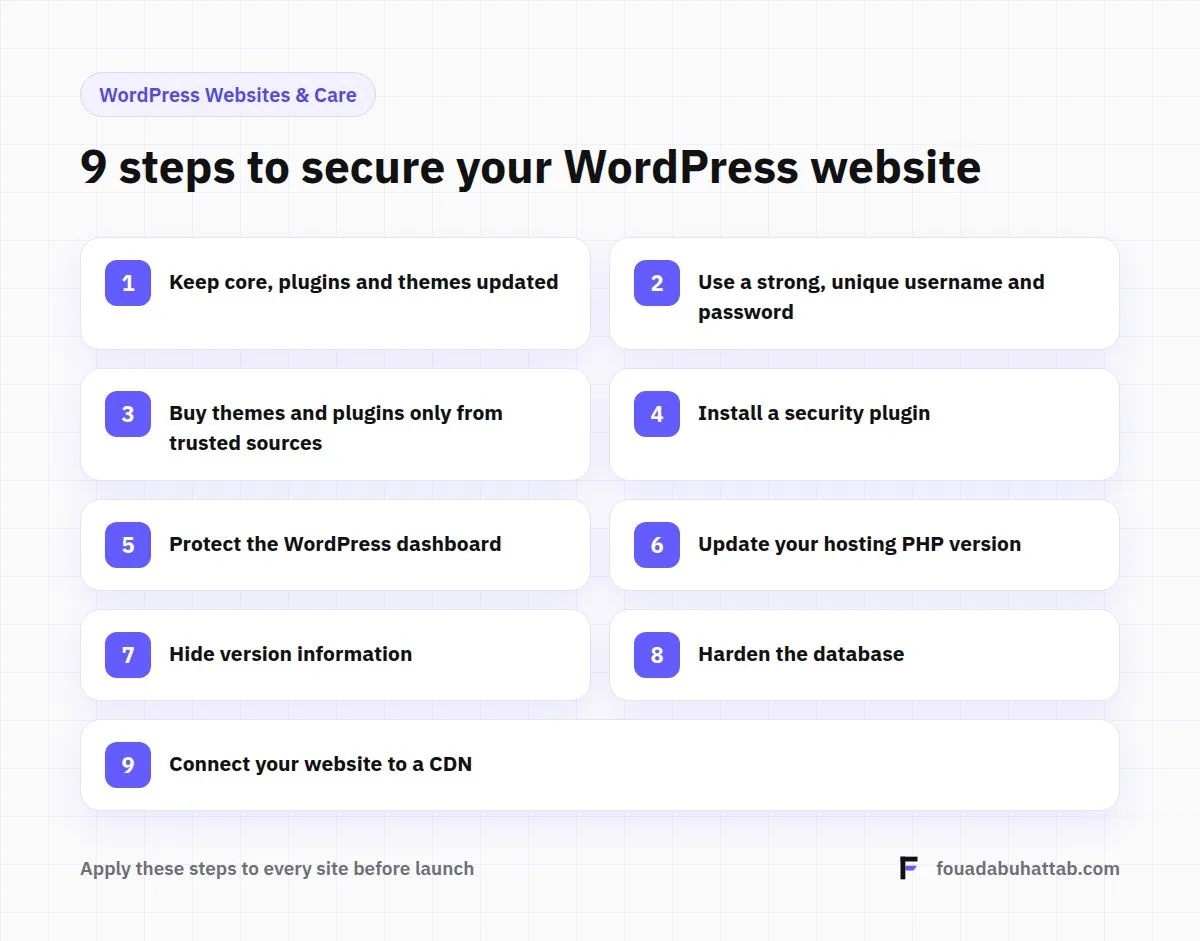
1. Keep WordPress core, plugins and themes updated
Most successful attacks exploit known vulnerabilities that were already fixed in newer versions, but the site owner never updated. Enable automatic security updates for core, review plugin updates weekly, and delete any plugin or theme you do not use, because deactivated code can still be a way in.
2. Use a strong, unique username and password
Avoid "admin" or your site name as a username, use a long password that differs from every other account, and keep it in a password manager. Most importantly, enable two-factor authentication for administrator accounts. It stops most login attempts even if a password leaks.
3. Buy themes and plugins only from trusted sources
Nulled themes and plugins look like savings, but they often carry hidden malicious code that opens a backdoor to your site. Download only from wordpress.org, the developer's official site, or well-known marketplaces such as ThemeForest and CodeCanyon.
4. Install a security plugin
Plugins such as Wordfence, Sucuri or All In One WP Security add a firewall, regular file scanning and alerts for suspicious activity. Choose only one, because running several security plugins together causes conflicts and slows the site down.
5. Protect the WordPress dashboard
Change the default login URL and limit failed login attempts to stop automated brute-force attacks. Give every user the minimum permissions they need: a content writer does not need administrator access.
Want someone to handle all of this for you? Maintenance plans cover safe updates, monitoring, backups and fast action when something goes wrong. See the maintenance plans
6. Update your hosting's PHP version
Old PHP versions stop receiving security fixes, so their vulnerabilities stay open. Check your version in the hosting panel and move to a supported one after testing it on a staging copy. As a bonus, your site becomes faster too.
7. Hide version information
An attacker who knows your WordPress, theme and plugin versions knows exactly which vulnerability to try. Hide this information from the page source and from public files such as readme.html. It is a simple step that makes their job harder.
8. Harden the database
Use a strong database password and a unique table prefix instead of the default wp_ at installation, and do not give the database user more permissions than the site needs.
9. Connect your website to a CDN
A service like Cloudflare sits between your site and its visitors, filtering harmful traffic and absorbing DDoS attacks before they reach your server, while improving speed at the same time.
Extra step: off-server backups
No protection is 100% perfect, so a backup is your last line of defense. Schedule regular backups of files and database, and store them off the server, because a backup kept on the same server can be lost with it if it is hacked or fails.
Signs your site may already be hacked
Strange pages appearing in Google under your domain, visitors being redirected to other sites, a browser warning, new administrator users you did not add, or a sudden unexplained slowdown. If you notice any of these, do not delay, because every day increases the damage to your data and rankings.
Frequently asked questions
Are WordPress sites insecure by nature?
No. WordPress core receives regular security updates. Most hacks come from outdated plugins, weak passwords or nulled themes.
How often should I review my site's security?
Weekly updates, and a full review of users, plugins and backups once a month.
Is a security plugin enough on its own?
No. It is an important part, but it does not replace updates, strong passwords and backups.
Need help securing your website?
I apply these steps and more on every project. Explore my maintenance and support service, or get in touch to have your site checked.